Install
From Fab to the plugin enabled in your project, in a few minutes. It works the same in a Blueprint-only project and a C++ one.
Install it to the engine
- In the Epic Games Launcher, open Fab Library and find Inventory, Equipment & Crafting System.
-
Click Install to Engine and pick your engine version (5.6, 5.7 or 5.8).
The launcher copies the plugin into the engine’s
Engine/Plugins/Marketplacefolder, ready built. Every project on that engine can now enable it.
Enable it in your project
- Open your project and pick Edit > Plugins.
-
Search for
Inventoryand tick Inventory, Equipment & Crafting System.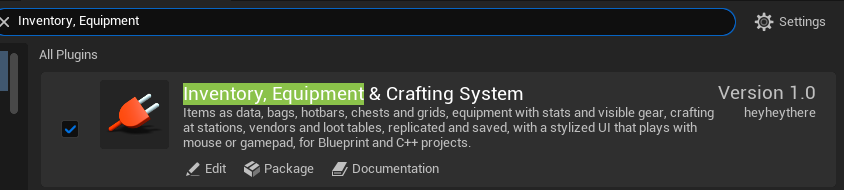
The plugin in Edit > Plugins, ticked. - Click Restart Now. The editor reopens with the plugin on, and the engine’s Enhanced Input and Gameplay Abilities plugins with it.
Enabling it adds, with nothing else to set up:
- an Inv Player component on every player controller as it logs in. It opens the inventory on I or Tab, picks up and opens with E, and draws the hotbar and prompts on the screen;
- the components Inv Container, Inv Equipment, Inv Crafter, Inv Station, Inv Vendor and Inv Wallet for your actors, and Inv Pickup in Place Actors;
- the
Inventory.*console commands and the Gameplay Debugger’s Inventory category.
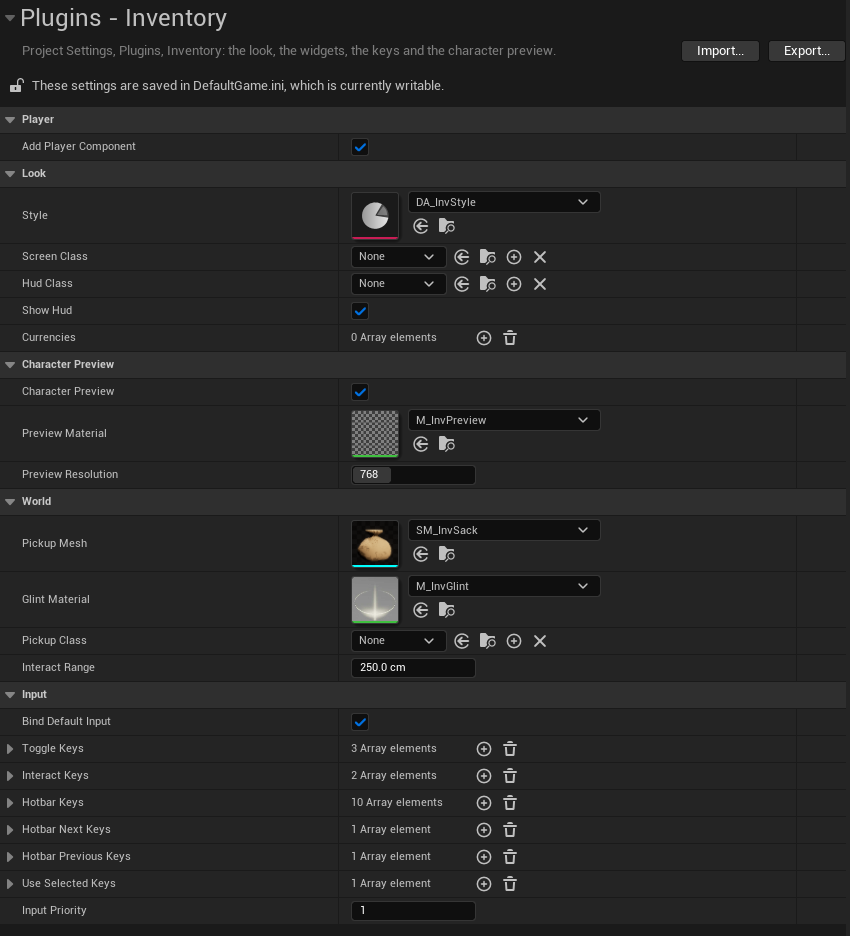
A player carries nothing until their character has a container: the quickstart adds one. Its settings, the look, the screen’s widgets, the keys and the character preview, are under Project Settings > Plugins > Inventory (the settings).
The plugin’s own content (its example items and recipes, the gear, the style and the demo) is under Plugins > Inventory, Equipment & Crafting System in the Content Browser. If you don’t see it, open the Content Browser’s Settings and turn on Show Engine Content and Show Plugin Content: installed to the engine, it counts as both.
Use it from C++
Blueprint-only projects need nothing more. In a C++ project, add the module to your game
module’s Build.cs to call the plugin from your code:
PublicDependencyModuleNames.AddRange(new string[] { "InventoryCrafting", "GameplayTags" });
Then include what you use, such as InvContainerComponent.h, InvPlayerComponent.h and
InvLibrary.h. For the Gameplay Ability System traits, add "InventoryCraftingGAS" too. The
how-tos give the C++ beside each Blueprint answer.
[!TIP] A team or a build machine needs the plugin too. Copy its folder from
Engine/Plugins/Marketplaceinto your project’s ownPluginsfolder and commit it; the project then builds it with its own code, so a machine that packages the game needs Visual Studio with its C++ tools, as for any code plugin in a project.In a Blueprint-only project, also open the copied
InventoryCrafting.upluginin a text editor and add the line"EnabledByDefault": false,after"CanContainContent": true,. Without it the packaged game is the engine’s ready-built one, without the plugin, and stops as it starts with “Unable to load plugin”. The project keeps the plugin ticked in Edit > Plugins either way.
Update it
When a new version is out, the Fab Library offers it. Close the editor, install it to the engine again, and open your project. Your items, recipes, components and save games carry over; the changelog says if a version needs anything of you.
Remove it
- Delete the Inv Pickups from your levels, the Inv components from your actors, your items, recipes and loot tables, and the Blueprints that call its nodes.
- Untick it in Edit > Plugins and restart the editor.
[!WARNING] Levels holding its actors, and Blueprints using its nodes or assets, don’t load or compile cleanly without the plugin. Remove them before you disable it. A save game holding an Inv Save Data loses that variable.