The graph
Double-click a dialogue asset and it opens as a graph: one node a statement, wired the way the
conversation runs. Whatever you change in it is written into the .qds file as you would have
typed it, so the script stays the one you diff, merge and hand to a writer
(how it keeps them in step).
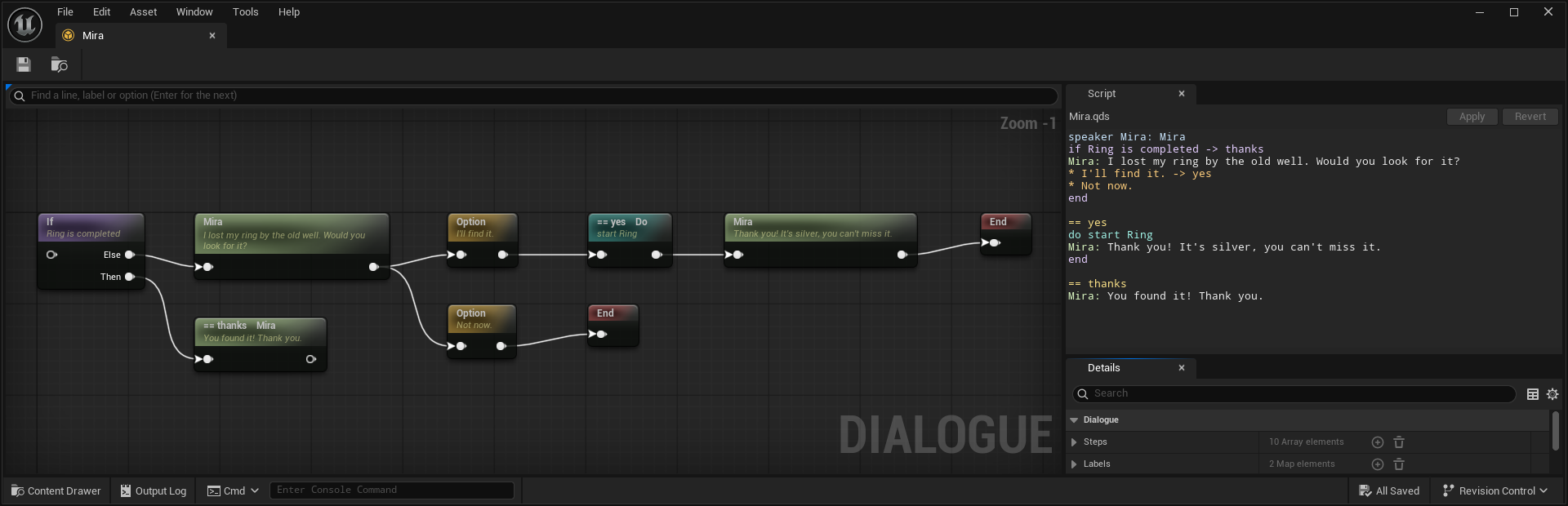
Read the graph
| Node | Its line in the script | Wires out |
|---|---|---|
| Line, in its speaker’s colour | Mira: Ah, a visitor. |
to the next statement, or to every option of the menu after it |
| Option | * Glowcaps? I can fetch some. -> ask |
to its label’s statement, or on after its menu |
| If | if Mushrooms is active -> waiting |
Then to the label, Else on |
| Do | do start Mushrooms |
to the next statement |
| Jump | -> more |
to the label |
| End | end |
nowhere |
A label shows on the node it heads (== ask), and a # comment above a statement as the node’s
comment bubble. A line with a mistake carries the compiler’s message; the Script pane lists
them all under the text, and clicking one selects its node.
Double-click a node with a target to go to it; on a do node that acts on a quest, it opens the
quest. Type in Find at the top to find a line, label or option; Enter goes to the next.
Edit it
- Change a line: select its node and edit Speaker, Text, Voice, Conditions, Target or Action in Details. Only that line of the script changes.
- Wire it: drag from an output pin to a node’s input. An option, an
ifand a jump change their-> label; a line or adogets a-> labelafter it, unless the target already comes next. A target without a label gets one, named for it; rename it in Label. - Unwire an option: right-click its pin and Break Link. The option then goes on after its menu.
- Add a node: right-click the graph, or drag from a pin into space, and pick Line, Option, If, Do, Jump or End. From a pin, the statement is written after that one, or as a new labelled block at the end of the script.
- Label or comment a node: its Label and Comment in Details.
- Delete: select nodes and press Delete; their lines go.
- Undo with Ctrl+Z, as everywhere in the editor: the file goes back too.
Each edit writes the file and compiles the asset at once. Moving nodes changes only the asset; save it to keep where they sit.
[!NOTE] If the
.qdsfile changed outside the editor since it was read, the editor loads it as it is now and drops the edit, with a note: make the edit again. A file that is read-only (checked in, in some source control) can’t be written: check it out first.
Edit the text
The Script pane beside the graph is the file itself. The lines the last graph edit changed
are marked, and so are the selected nodes’. Type in it and press Apply: the file is written,
compiled and the graph drawn again; Revert drops what you typed. A script with no .qds file,
made in the editor, keeps its text in the asset.
Editing the file in another program works as before: Reimport the asset, and an open graph follows.
A quest’s graph
Double-click a quest asset and it opens as a graph beside its Details: what it needs to start,
each stage with its objectives, Completed, and Failed or abandoned. The stages stand in
columns by how many steps they are from the first, the stages of different
paths one above another, and the two ends after the last column. Under
them sits every dialogue line that acts on the quest, wired to the stage it reaches: do start to
the first, do goto to its stage, do complete to Completed, do report to the stages whose
objectives count that tag.
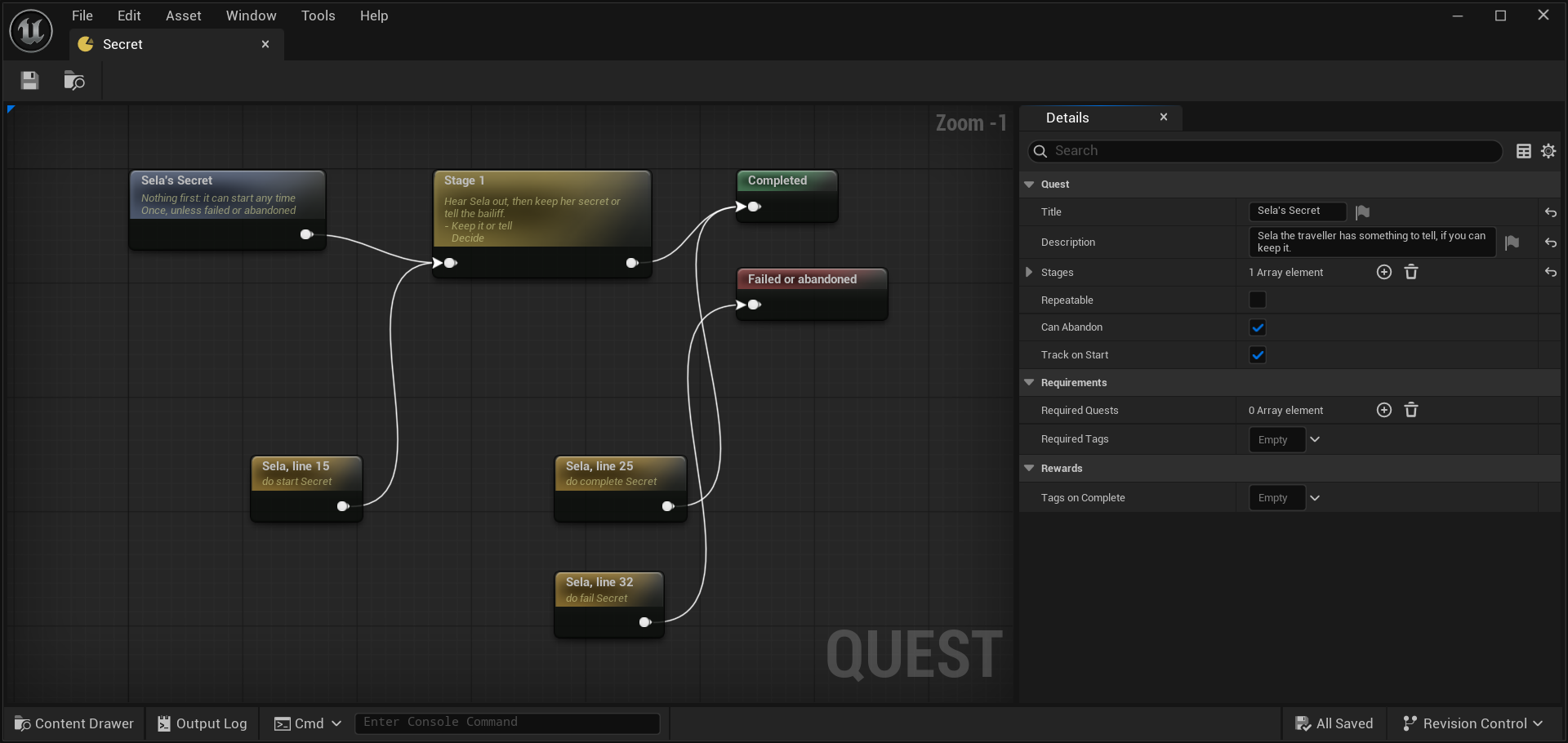
A stage node has a pin for each objective, and a done pin for where the quest goes once the stage’s required objectives are done. A choice, a stage whose required objectives are all paths, has no done pin: only its paths leave it.
| Wire | From | Is |
|---|---|---|
| white | done | the stage’s Then; by default, to the following stage, or Completed after the last |
| white | an objective | the objective’s Then: finishing it takes the quest there |
| red | any pin, to Failed | a Then of Fail |
| faint red | a required objective, to Failed | no Then: failing the objective fails the quest |
An optional objective that is no path has a pin with no wire.
Edit where it goes
- Set it: drag from a stage’s pin to a stage, Completed or Failed. Dragged from an objective’s pin, it makes the objective a path.
- Reset it: point at the wire, so it lights, and press Delete; or Alt-click it, or right-click the pin and pick Break Link. The Then goes back to Next: a done pin wires to the following stage again, and an objective is no path any more. Breaking the links into a stage resets every Then that goes there.
- Undo with Ctrl+Z; each change is one step.
Each change is written into the quest at once, and Details follows; save the quest to keep it. The rest of the quest, its text, objectives and Ids, is edited in Details, and the graph follows. Double-click a dialogue line’s node to open that dialogue at it.
Watch it in Play
While you play in the editor, an open quest graph follows the first player’s copy of the quest: the path it took is lit, and the stage it is at, or the end it reached, is ringed.