Install
From Fab to the plugin enabled in your project, in a few minutes. It works the same in a Blueprint-only project and a C++ one.
Install it to the engine
- In the Epic Games Launcher, open Fab Library and find GAS Ability & Status Effect System.
-
Click Install to Engine and pick your engine version (5.6, 5.7 or 5.8).
The launcher copies the plugin into the engine’s
Engine/Plugins/Marketplacefolder, ready built. Every project on that engine can now enable it.
Enable it in your project
- Open your project and pick Edit > Plugins.
-
Search for
Ability & Statusand tick GAS Ability & Status Effect System.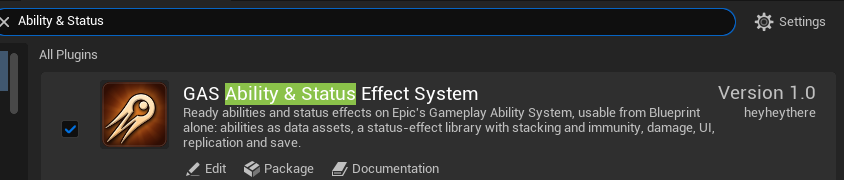
The plugin in Edit > Plugins, ticked. - Click Restart Now. The editor reopens with the plugin on, and with Gameplay Abilities, Enhanced Input and Niagara, which it turns on with it.
Enabling it changes nothing in your game yet: a character casts once it has the AS Ability System component, which the quickstart adds. It brings:
- the AS Ability System and AS Overhead Bar components, in any Blueprint’s Add menu;
- AS Ability under Gameplay in the Content Browser’s right-click menu, for abilities of your own;
- the Blueprint nodes, under Abilities and Ability System in the node menu;
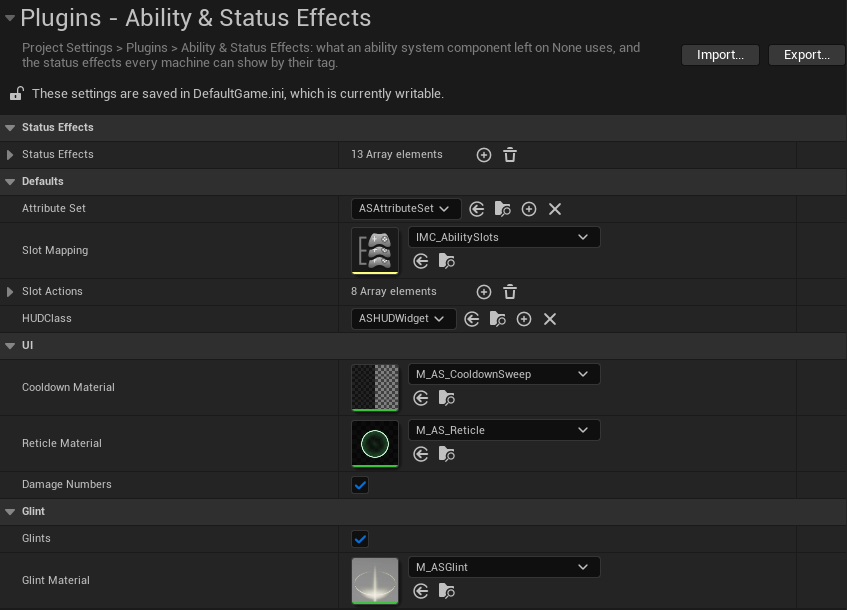
- its settings, in Project Settings > Plugins > Ability & Status Effects: the statuses the bars show, the attributes every component gets, the slots’ keys, the HUD class and the damage numbers (every setting).
Find its content
The plugin’s abilities, statuses, effects, icons and keys are under Plugins > GAS Ability & Status Effect System in the Content Browser. To see them:
- In the Content Browser, click Settings at the top right.
- Turn on Show Engine Content and Show Plugin Content. Installed to the engine, the plugin counts as both: with only one on, its folder stays hidden.
Pickers for abilities, statuses, icons and effects show the plugin’s assets with these settings off.
Use it from C++
Blueprint-only projects need nothing more. In a C++ project, add the modules to your game module’s
Build.cs to call the plugin from your code:
PublicDependencyModuleNames.AddRange(new string[] { "AbilityStatus", "GameplayAbilities", "GameplayTags" });
Then include what you use: ASAbilitySystemComponent.h for the component, ASLibrary.h for the
status, damage and save nodes, ASAbilityAsset.h for abilities. The how-tos give the
C++ beside the Blueprint answers where it helps.
[!TIP] A team or a build machine needs the plugin too. Copy its folder from
Engine/Plugins/Marketplaceinto your project’s ownPluginsfolder and commit it; the project then builds it with its own code, so a machine that packages the game needs Visual Studio with its C++ tools, as for any code plugin in a project.In a Blueprint-only project, also open the copied
AbilityStatus.upluginin a text editor and add the line"EnabledByDefault": false,after"CanContainContent": true,. Without it the packaged game is the engine’s ready-built one, without the plugin, and stops as it starts with “Unable to load plugin”. The project keeps the plugin ticked in Edit > Plugins either way.
Update it
When a new version is out, the Fab Library offers it. Close the editor, install it to the engine again, and open your project. Your abilities, characters and save games carry over; the changelog says if a version needs anything of you.
Remove it
- Remove the AS Ability System and AS Overhead Bar components from your Blueprints, and delete your own AS Ability assets and any Blueprint whose parent is one of the plugin’s classes (a status, an ability, the HUD).
- Untick it in Edit > Plugins and restart the editor.
[!WARNING] Ability assets, and Blueprints holding the plugin’s components or made from its classes, don’t load without the plugin. Remove them before you disable it, or the editor reports them as missing classes.