Install
From Fab to the plugin enabled in your project, in a few minutes. It works the same in a Blueprint-only project and a C++ one.
Install it to the engine
- In the Epic Games Launcher, open Fab Library and find Farming & Fishing System.
-
Click Install to Engine and pick your engine version (5.6, 5.7 or 5.8).
The launcher copies the plugin into the engine’s
Engine/Plugins/Marketplacefolder, ready built. Every project on that engine can now enable it.
Enable it in your project
- Open your project and pick Edit > Plugins.
-
Search for
Farmingand tick Farming & Fishing System.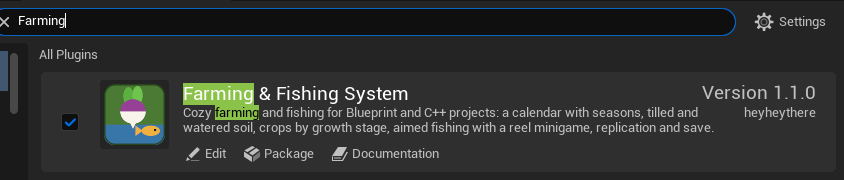
The plugin in Edit > Plugins, ticked. - Click Restart Now. The editor reopens with the plugin on.
Enabling it adds, with nothing else to set up:
- a Farmer Component and a Fishing Component on every player’s pawn as it is possessed;
- the keys: 1 to 6 and the mouse wheel pick a tool, the left mouse button uses it, and E picks the next seed (on a gamepad, the shoulders, the right trigger and the left face button);
- the HUD: the date at the top left, the tool bar at the bottom, and what the targeted tile holds;
- the calendar, starting on the first morning of spring at 06:00 and running at 30 real seconds a game hour;
- Farm Area and Fishing Water in the Place Actors panel, and Crop, Fish and Fish Table as data asset classes.
Project Settings > Plugins > Farming & Fishing (the settings) turns off the added components, and sets the calendar’s start hour and speed and the HUD class. Play always starts on day 1 of spring. The keys are fixed: to use your own, untick the Farmer Component’s Default Input and call its nodes from your input (how).
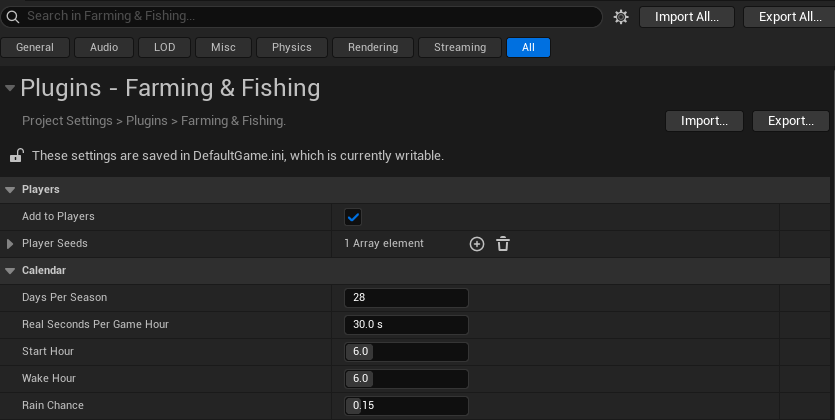
The plugin’s own content (its sample crops and fish, meshes and materials) is under Plugins > Farming & Fishing System in the Content Browser. If you don’t see it, open the Content Browser’s Settings and turn on Show Engine Content and Show Plugin Content: installed to the engine, it counts as both.
[!NOTE] The plugin needs Enhanced Input, which every project made from Epic’s templates already uses. A project still on the old input system can enable Enhanced Input under Edit > Plugins and set it as the default input class in Project Settings > Input.
Use it from C++
Blueprint-only projects need nothing more. In a C++ project, add the module to your game
module’s Build.cs to call the plugin from your code:
PublicDependencyModuleNames.AddRange(new string[] { "FarmingFishing" });
Then include what you use, such as FFLibrary.h, FFFarmerComponent.h and FFInventory.h. The
how-tos give the C++ beside the Blueprint answers where it helps.
[!TIP] A team or a build machine needs the plugin too. Copy its folder from
Engine/Plugins/Marketplaceinto your project’s ownPluginsfolder and commit it; the project then builds it with its own code, so a machine that packages the game needs Visual Studio with its C++ tools, as for any code plugin in a project.In a Blueprint-only project, also open the copied
FarmingFishing.upluginin a text editor and add the line"EnabledByDefault": false,after"CanContainContent": true,. Without it the packaged game is the engine’s ready-built one, without the plugin, and stops as it starts with “Unable to load plugin”. The project keeps the plugin ticked in Edit > Plugins either way.
Update it
When a new version is out, the Fab Library offers it. Close the editor, install it to the engine again, and open your project. Your crops, fish, fields and save games carry over; the changelog says if a version needs anything of you.
Remove it
- Delete or move out of
Contenteverything made with it: your crop, fish and fish table assets, and the Farm Areas and Fishing Waters in your maps. Remove any Farmer or Fishing Component you added to your own Blueprints. - Untick it in Edit > Plugins and restart the editor.
[!WARNING] Crop and fish assets, and maps and Blueprints holding the plugin’s actors or components, don’t load without the plugin. Remove them before you disable it, or the editor reports them as missing classes.